
1.9 KiB
1.9 KiB
FAQ
Table of Contents
Shellcode Not Working
If shellcode generation or execution isn't producing the expected outputs, it often means the project wasn't built with the shellcode feature enabled. Follow the steps below to ensure your build configuration includes Donut support.
Enabling Shellcode Outputs
-
Open the solution: Launch Visual Studio and open
Pulsar.sln.
-
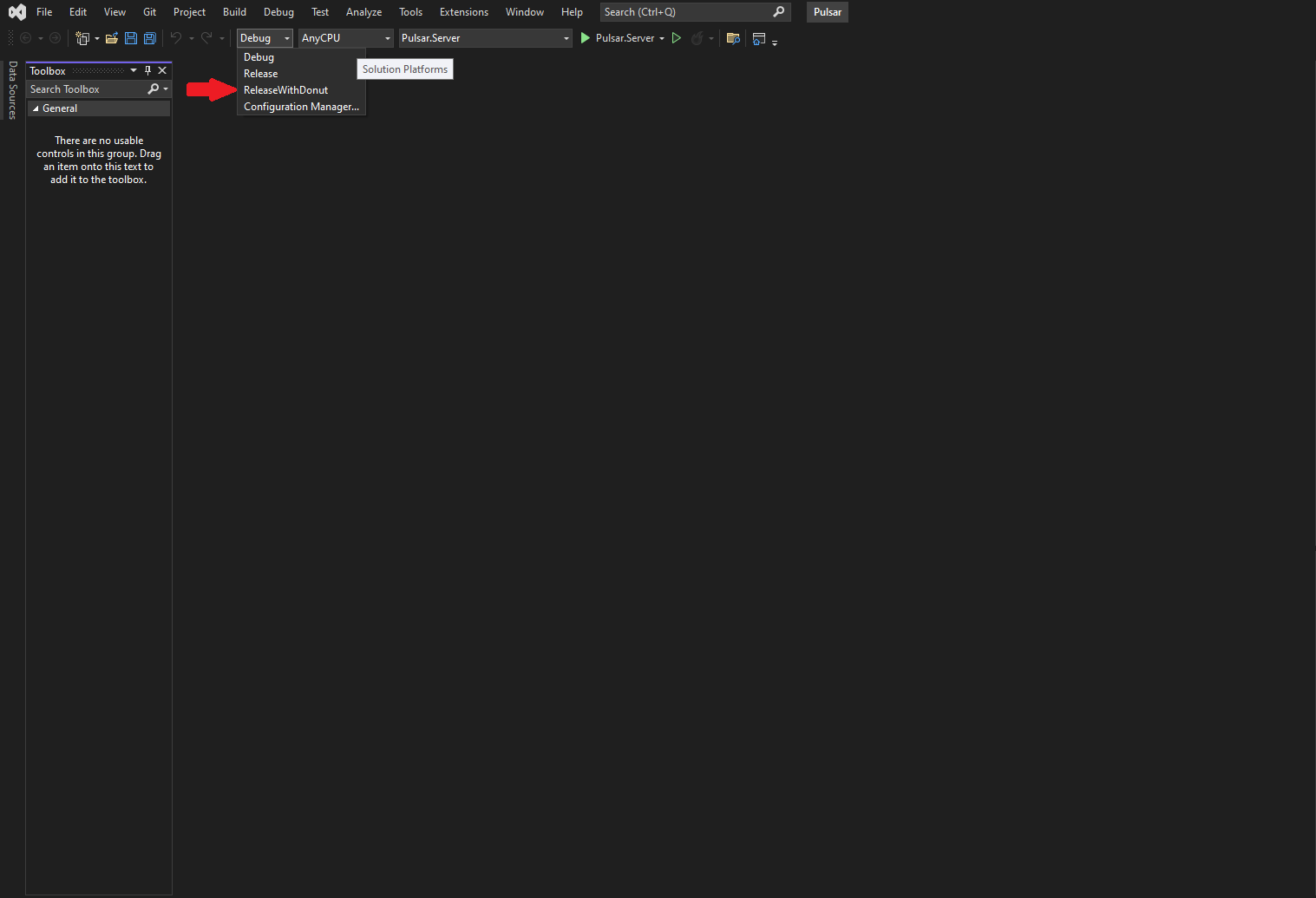
Select build configuration:
- Locate the configuration selector on the toolbar (usually reads
DebugorRelease).
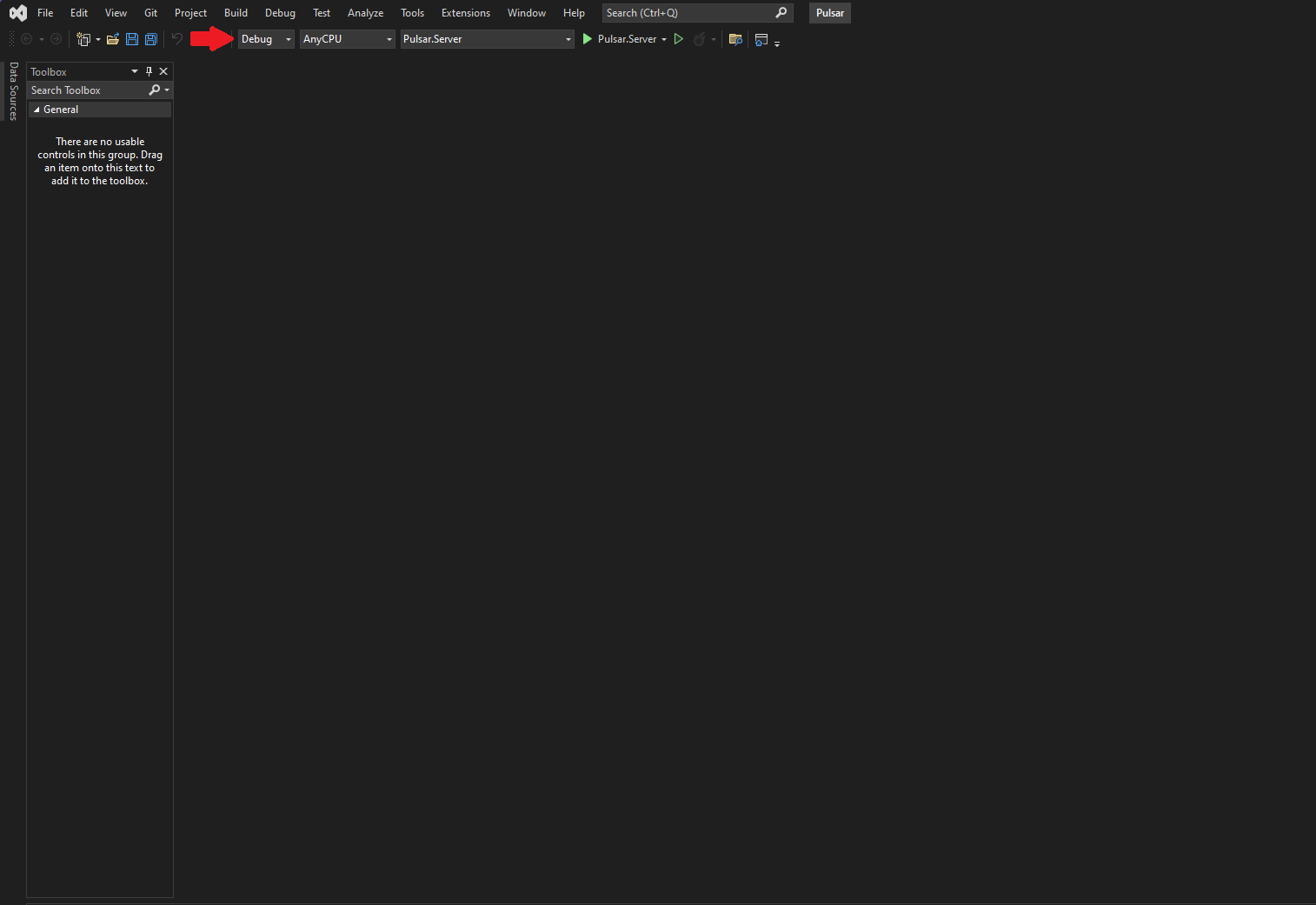
- Change it to ReleaseWithDonut.
- Locate the configuration selector on the toolbar (usually reads
-
Build the solution:
- Go to
Build → Build Solutionor pressCtrl + Shift + B.

- Go to
-
Verify outputs:
- After a successful build, navigate to
bin/Release. - Confirm that the shellcode converter files (donut.exe) are present.
- After a successful build, navigate to


Alternative Build Process
If you cannot use Visual Studio or the standard build fails, enable shellcode outputs manually:
-
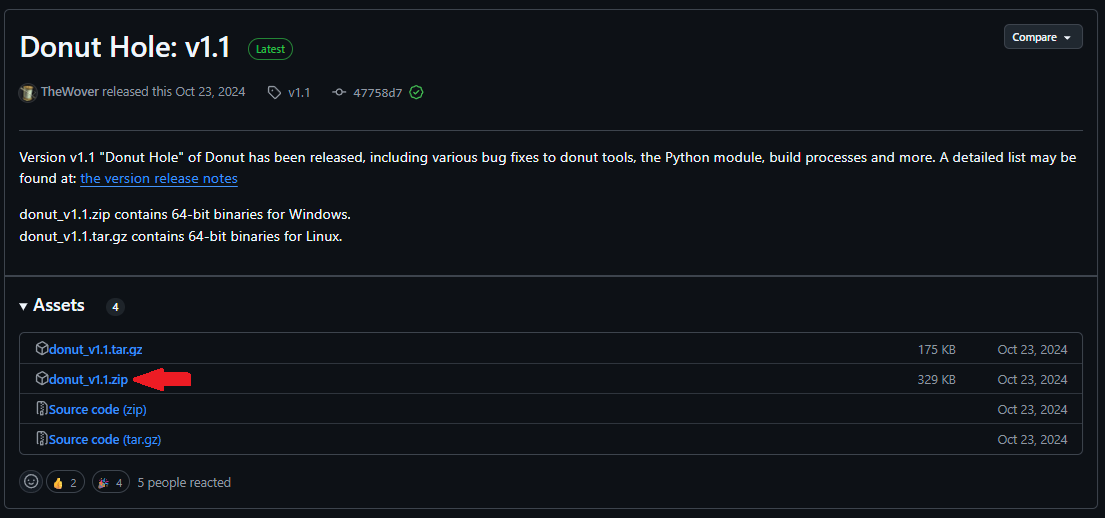
Download Donut:
- Visit the Donut Releases page.
- Download the latest
donut.exefor your operating system.
-
Extract the binary:
- Unzip or extract the downloaded archive to locate
donut.exe.
- Unzip or extract the downloaded archive to locate
-
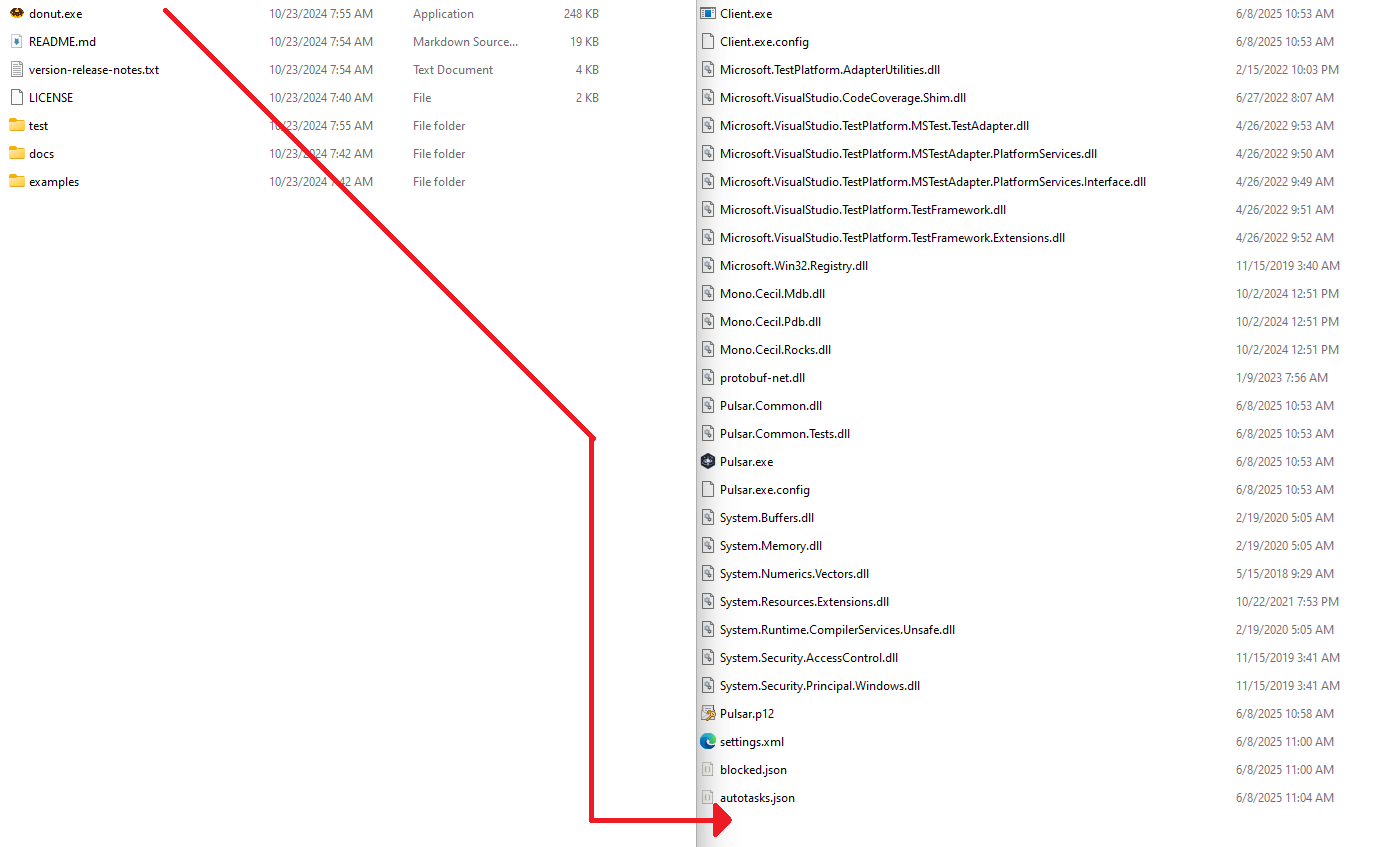
Copy to Pulsar output:
- Place
donut.exeinto your Pulsar build directory:bin/ReleaseWithDonut.
- Place
-
Verify manual setup:
- Check Pulsar if the build shellcode artifact is enabled.

